
Attendance
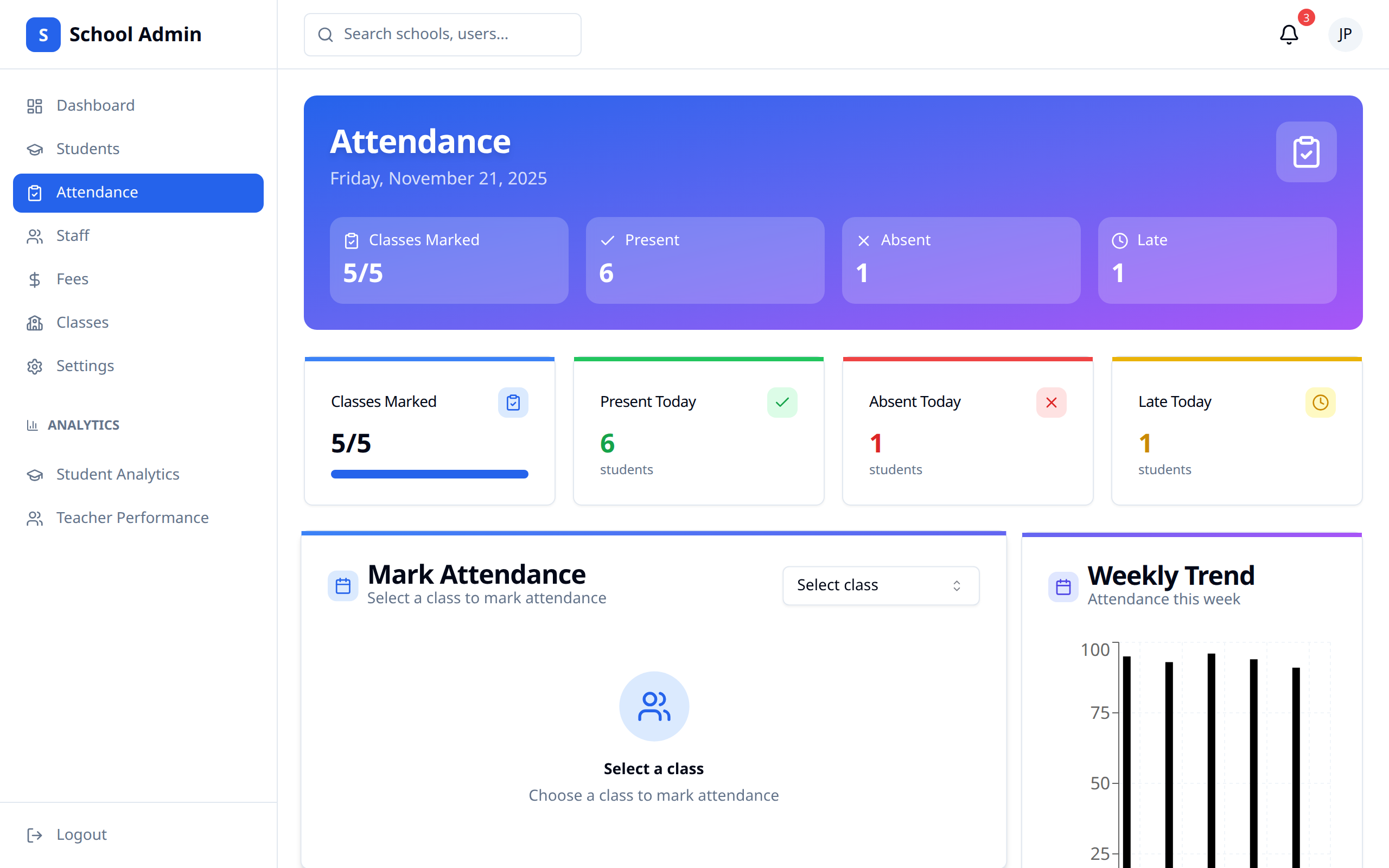
The Attendance page is where you take a class register for a given day, and correct marks that were entered earlier.
Accessing Attendance
- Click Attendance in the sidebar navigation
- Pick a class and a date
Taking Attendance
Pick the class and date
At the top of the page:
- The class dropdown lists every class; the first one is selected automatically
- The date box defaults to today and can't be set to a future date
Anything already saved for that class and date loads in, so you can correct earlier marks without losing them. If the class has no students, the page says so instead of showing an empty table. If loading the class list, the roster, or that day's saved marks fails, you'll see an error message with a Retry button rather than a blank page.
Mark each student
Each row in the roster has four buttons on the right:
| Button | Marks the student |
|---|---|
| Tick | Present |
| Cross | Absent |
| Clock | Late |
| Circle | Excused |
The Status column shows the current mark as a badge — Present, Absent, Late, Excused, or Not marked.
To fill the whole register in one go, click Mark all present, then change the handful of students who weren't.
WARNING
Mark all present resets every student's mark to Present, including any marks already loaded for that day (for example if you're revisiting a date where some students were previously recorded absent). Use it as your starting point, not after you've already made corrections you want to keep.
Save
Click Save attendance. You'll get a confirmation naming how many students were saved (e.g. "Saved attendance for 24 students"). The button stays disabled — greyed out — until at least one student has a mark.
Live Counters
The coloured tiles at the top of the page update as you mark:
| Counter | Description |
|---|---|
| Present | Students marked present |
| Absent | Students marked absent |
| Late | Students marked late |
| Excused | Students marked excused |
| Unmarked | Students in the roster with no mark yet |
Correcting Records
To fix a mistake:
- Select the same class and the date the mistake was made on
- The saved marks load in
- Change whichever students need changing
- Click Save attendance
Excusing an Absence
Mark the student Excused with the circle button rather than Absent, then save.
Attendance Reports
Attendance history and exports live under Analytics → Reports → Attendance, where you can set a date range and an optional class, then download as PDF, Excel or CSV. See Analytics.
Attendance Alerts
Whether YeboLearn sends attendance alerts is controlled by the Attendance Alerts toggle under Settings → Notifications. See Settings.
Best Practices
- Take it daily - Mark the register every school day
- Correct promptly - Fix mistakes the same day where you can
- Use Excused deliberately - It's distinct from Absent in reports
- Watch the Unmarked count - It should be zero before you save
- Analyze trends - Use the attendance report to look for patterns
TIP
Attendance recorded inside a term's start and end dates is what appears on report cards. If the term dates in Settings are wrong, report card attendance will be too.