
Welcome to the Teachers App
The YeboLearn Teachers App is your comprehensive teaching assistant designed to streamline classroom management, student assessment, and communication.
Overview
The Teachers App provides tools to:
- See your classes - View the class subjects your school admin has assigned to you
- Take attendance - Mark today's roster quickly
- Create assessments - Build quizzes, tests, and exams with their questions
- Enter marks - Record scores per subject, term, and academic year
- Print report cards - Add remarks and print report cards for one student or a whole class
- Plan lessons - Generate curriculum-aligned lesson plans with AI and save them
- Build flashcard decks - Create study decks your students can revise from
- Track analytics - Monitor class averages, attendance, and at-risk students
- Communicate - Message parents/guardians and other staff
Getting Started
Accessing the App
- Open your web browser
- Go to your school's YeboLearn teacher dashboard address
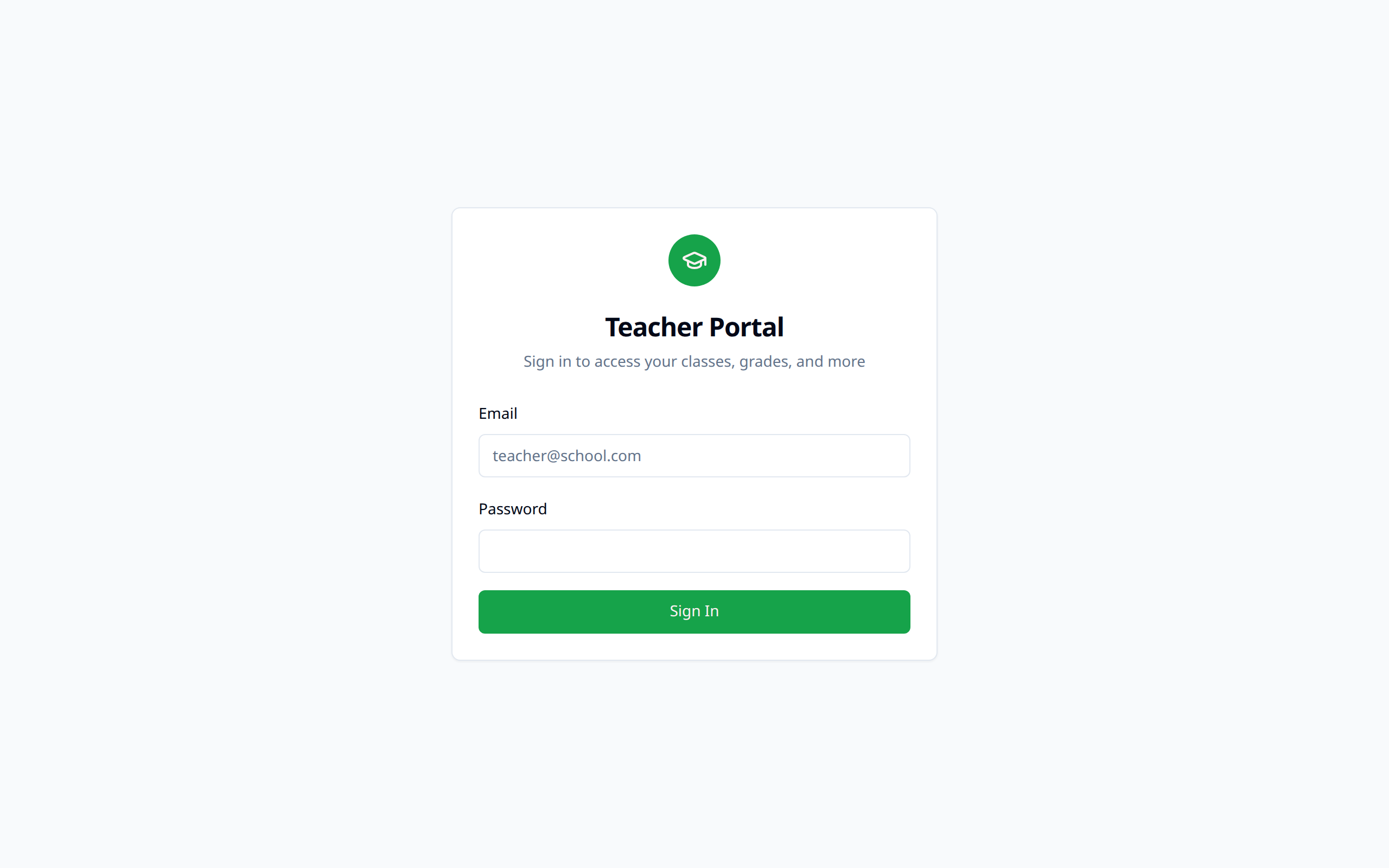
- Sign in with your email and password
First-Time Login
Your school admin either invites you by email or gives you sign-in details directly.
- If you received an invite link, open it, fill in your first and last name, an optional phone number, and choose a password, then click "Activate & continue". You're signed in automatically.
- If you were given a password, sign in with it on the login page.
Once you're in, check your class assignments on the Dashboard. If nothing appears, your admin hasn't assigned you to a class subject yet.
Navigation
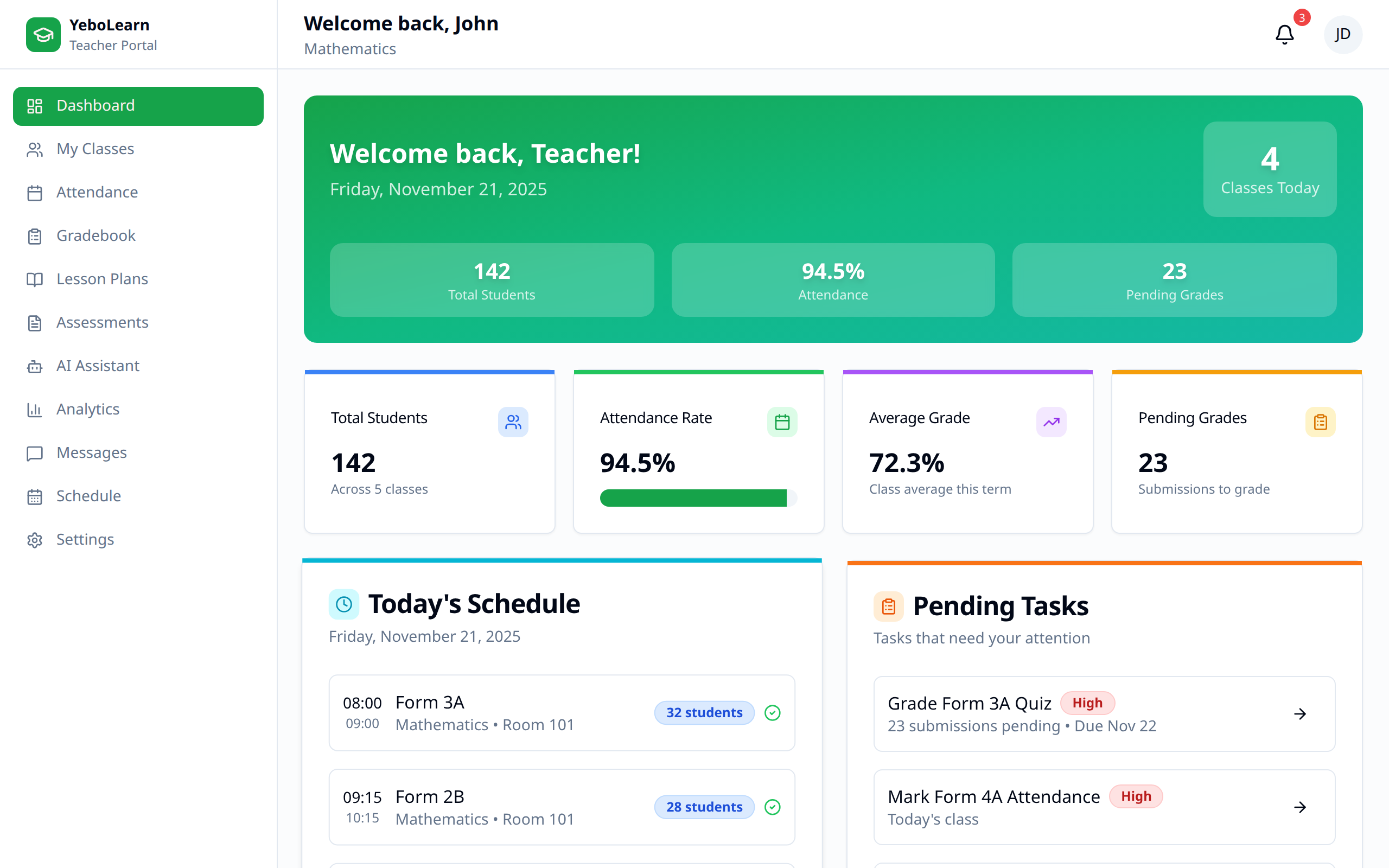
The Teachers App features a sidebar down the left-hand side:
| Menu Item | Description |
|---|---|
| Dashboard | Your class-subject assignments and quick actions |
| My Classes | One card per class subject you teach, with rosters |
| Attendance | Mark today's attendance |
| Gradebook | View saved marks, add remarks, print report cards |
| Lesson Plans | Generate and save lesson plans |
| Assessments | Create and manage quizzes, tests, and exams |
| Flashcards | Build flashcard decks for your students |
| AI Assistant | AI-powered teaching tools |
| Analytics | Class performance insights |
| Messages | Message parents/guardians and staff |
| Schedule | Your weekly class timetable |
| Settings | Profile, institution type, and notification preferences |
Not every teacher sees every item. The sidebar follows the Institution Type chosen in Settings. In ECD Center mode, for instance, the class-based pages (My Classes, Gradebook, Lesson Plans, Assessments, Flashcards, AI Assistant, Analytics) are replaced by ECD Overview, Children, Milestones, and Daily Reports. In University and TVET modes, Messages isn't shown (TVET also drops Flashcards), and AI Assistant only appears in Secondary School mode. If something you expect is missing, check that setting first.
Quick Start Guide
Your First Day
- Check your dashboard - Review the class subjects you've been assigned
- Verify class lists - Open a class and check the roster is correct
- Confirm your terms - Marks are saved against a term, so check that your admin has set up terms for the year
- Plan your lessons - Generate and save your first lesson plan
Daily Workflow
- Check your timetable on Schedule
- Take attendance for each class
- Deliver lessons
- Enter any marks
- Respond to messages
System Requirements
For the best experience:
- Modern web browser (Chrome, Firefox, Safari, Edge)
- Updated browser version
The app keeps working when your connection drops: marks and report-card remarks you save while offline are queued and sync automatically once you're back online. The chip at the top right of the screen shows whether you're Synced, Syncing, or Offline.
Need Help?
If you encounter issues:
- Check the relevant documentation section
- Contact your school's IT support
- Reach out to your school administrator