
AI Assistant
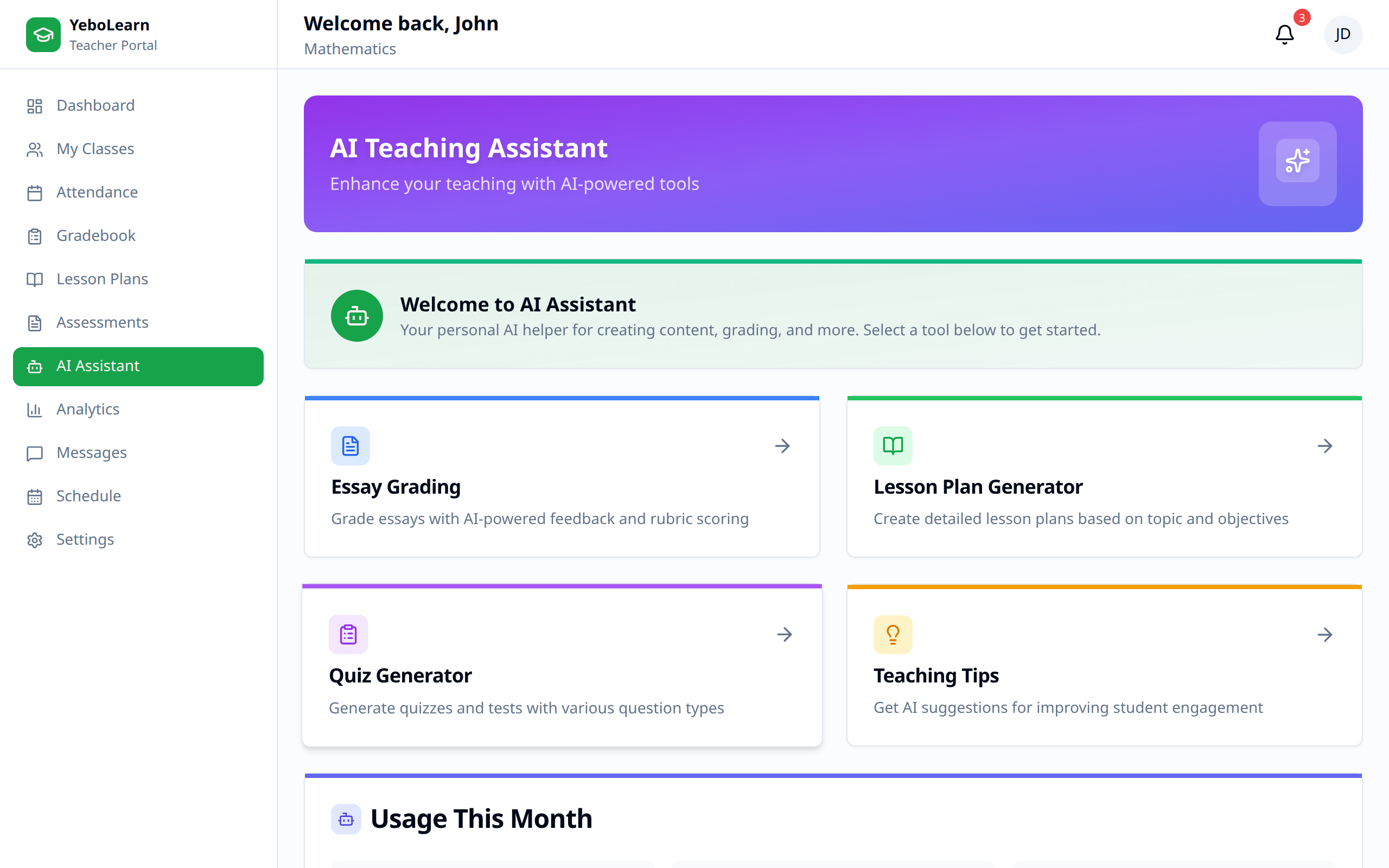
The AI Assistant page is the launchpad for the AI-powered tools in the Teachers App.
Accessing AI Assistant
- Click "AI Assistant" in the sidebar navigation
- The AI Teaching Assistant page opens with a card for each tool
:::note The AI Assistant item only appears for some institution types. If you don't see it in the sidebar, check the Dashboard Mode setting on the Settings page, or ask your school administrator. :::
The Tools
| Tool | What it does |
|---|---|
| Lesson Plan Generator | Opens the lesson plan creator, where AI drafts a full plan from your subject, topic, grade, and duration |
| Quiz Generator | Opens the assessment builder, where you create a quiz, test, or exam and its questions |
| Essay Grading | Opens the essay marking screen |
| Teaching Tips | Not available yet — the card doesn't open anything |
Lesson Plan Generator
This is the same flow as Lesson Plans → New lesson plan. Fill in Subject, Topic, Grade Level, and Duration, click "Generate with AI", review the result, and save it to your library. See the Lessons guide for the full walkthrough.
Quiz Generator
This card takes you to Create Assessment, where you build a quiz, test, or exam and write its questions. See the Assessments guide.
Essay Grading
The AI Essay Grading screen asks for a Subject, a Grade Level (Form 1 to Form 5), an optional Essay Prompt, and the essay text, then produces an overall score, a breakdown, and written feedback.
WARNING
Essay Grading is still a preview. It returns the same sample score and feedback no matter which essay you paste in, so don't use it to mark real student work yet.
:::note The "Usage This Month" figures at the bottom of the AI Assistant page are sample placeholders, not a count of your own activity. :::
Using Generated Content
Reviewing Output
Always review AI-generated content:
- Check accuracy
- Verify appropriateness for your class
- Ensure curriculum alignment
Editing and Customizing
The AI provides a starting point:
- Review the generated content
- Edit it — lesson plans stay fully editable after saving
- Adapt it for your students
Effective Prompts
Be Specific
The lesson plan generator works from the fields you give it, so make them precise.
Good: Subject "History", Topic "Causes of the First World War", Grade Level "Form 4", Duration 45
Less effective: Subject "History", Topic "War"
Provide Context
Fill in the optional fields when you can:
- Learning Objectives — one per line, in your own curriculum wording
- Curriculum Framework — e.g. Eswatini National Curriculum
Iterate
Not happy with a draft? Click "Regenerate with AI" for a fresh one, or edit the sections yourself before saving.
Best Practices
- Verify accuracy - Always review AI output
- Customize content - Adapt it for your specific class
- Use as a starting point - Enhance it with your expertise
- Be specific - Better inputs get better results
- Save useful outputs - Keep good plans in your library for reuse
Limitations
The AI Assistant:
- May not have the most current information
- Provides suggestions, not definitive answers
- Should supplement, not replace, your expertise
- May occasionally produce inaccurate content
TIP
Think of the AI as a helpful teaching assistant - it can save time and provide ideas, but your professional judgment should guide final decisions.
Privacy
- Don't paste sensitive student information into AI tools
- Follow school policies on AI usage