
Profile
The Profile section shows your personal and school details, your progress, and lets you change your password or sign out.
Accessing Profile
- Click "Profile" in the sidebar navigation, or
- Tap Profile in the bottom bar on your phone
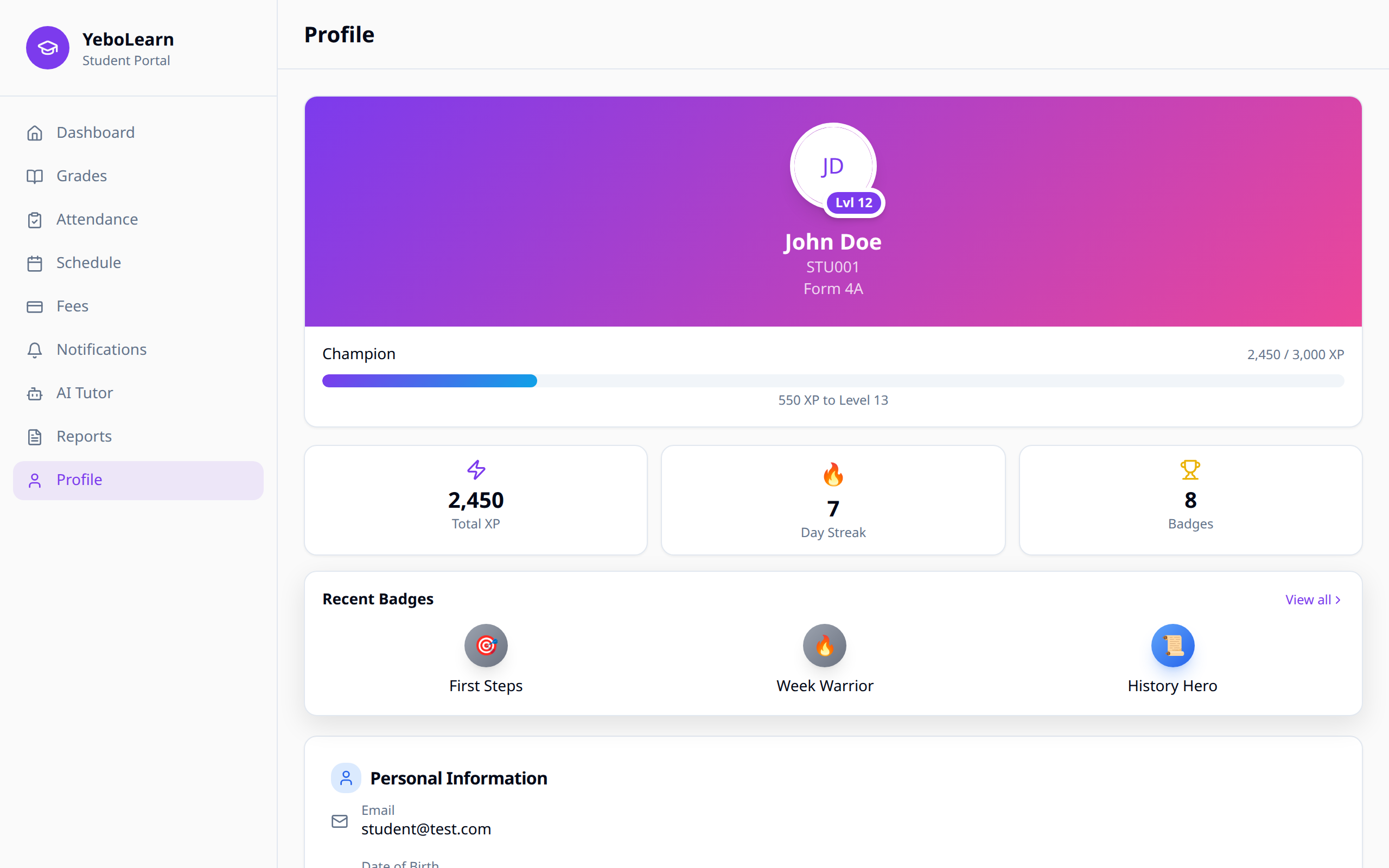
Your Profile Card
At the top you'll see a circle with your initials, your name, your admission number and your class. If your school uses XP and badges, your level sits on the corner of the circle, with an XP bar underneath showing how close you are to the next level.
Your Progress
Three small cards show:
- Total XP
- Day Streak
- Badges
Under those, Recent Badges shows your newest badges. Click "View all" to open the Achievements page.
:::note These only appear if your school has turned XP and badges on. :::
Personal Information
| Field | Description |
|---|---|
| The email you sign in with | |
| Phone | Your contact number, if your school has one |
| Date of Birth | Your birth date |
| Gender | Your gender |
Academic Information
| Field | Description |
|---|---|
| Class | The class you're in |
| Enrollment Date | When you joined the school |
| Class Rank | Your position in your class, like #3 of 40 (XP and badges only) |
Account
Your name, date of birth and class are managed by your school — the page says so too. Ask your teacher or school admin to change any of them.
Changing Your Password
- In the Account card, click "Change" next to Password
- Enter your Current password
- Enter your New password and type it again under Confirm new password
- Click "Update password"
Use the eye icon to check what you've typed. You can also reach this from Settings → "Change password".
Your new password must be different from your old one and meet your school's password rules — see Authentication for the full list.
Signing Out
Scroll to the bottom and click "Sign Out".
WARNING
Always sign out on a shared or school computer.
Preferences
Notification and display settings aren't on this page — they live in Settings, where you can turn email, SMS and push notifications on or off, choose what you get told about, and switch on dark mode, compact view or reduced motion.
Troubleshooting
Can't Change Something
Most of your details are managed by your school. If a field is wrong, ask your teacher or school admin to fix it.
Password Problems
- Make sure your new password meets all the rules
- If you've forgotten your current password, ask your school admin to reset it